
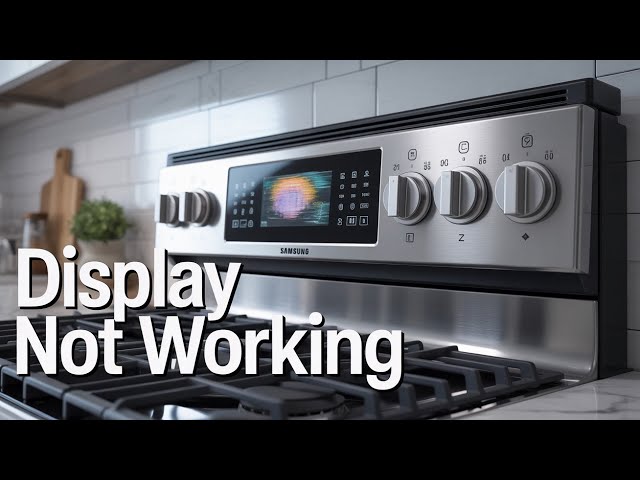
Is your Samsung oven display not working, leaving you frustrated and unsure about what to do next? You’re not alone.
When the display goes dark or becomes unresponsive, it can disrupt your cooking plans and make using your oven a real hassle. But don’t worry—this problem often has simple solutions that you can try yourself. Keep reading to find out why your Samsung oven display might be acting up and how you can fix it quickly, so you can get back to cooking with confidence.

Credit: www.youtube.com
Common Display Issues
Samsung oven displays sometimes stop working properly. These problems can make using the oven hard or unsafe.
Knowing common display issues helps you fix or explain the problem better.
Black Screen
A black screen means the display does not show anything. The oven may seem off even if power is on.
This can happen due to power issues or a broken display panel.
- Check if the oven is plugged in correctly
- Inspect the power outlet for problems
- Look for blown fuses or tripped breakers
- Display panel might need repair or replacement
Flickering Display
A flickering display blinks on and off or changes brightness. This makes it hard to read the screen.
Flickering often occurs from loose wiring or a faulty control board.
- Check display connections inside the oven
- Make sure wires are secure and not damaged
- Control board may need testing or replacement
Unresponsive Touch Panel
The touch panel may not respond when you press buttons. This stops you from controlling the oven.
Dirt, moisture, or a broken panel can cause this problem.
- Clean the touch panel gently with a soft cloth
- Make sure hands are dry before use
- If cleaning does not help, the panel might be defective
- Professional repair or replacement may be needed
Basic Troubleshooting Steps
If your Samsung oven display is not working, try simple checks first. These steps help find common issues.
Follow easy actions to see if the display starts working again. No special tools are needed.
Power Cycle The Oven
Turn off the oven to reset its system. This can fix small glitches in the display.
Unplug the oven or switch off the circuit breaker. Wait for one minute before powering it back on.
- Turn off the oven power
- Wait 60 seconds
- Turn on power again
- Check if display works
Check Power Supply
Ensure the oven is properly connected to power. A loose plug or tripped breaker can cause display issues.
- Check if the power cord is plugged in well
- Make sure the outlet has power
- Reset the circuit breaker if it is tripped
- Use a different outlet if needed
Inspect Control Lock Feature
Your oven may have a control lock. This stops the display from working to avoid accidental changes.
Look for a lock icon on the display. Follow the manual to turn off the control lock if it is on.
- Find the control lock button or symbol
- Hold the button for 3-5 seconds
- Wait for the lock icon to disappear
- Test if the display responds
Resetting The Oven
Sometimes the Samsung oven display stops working. Resetting the oven can fix this problem.
Resetting clears errors and restores the display to normal. There are two main ways to reset.
Manual Reset Procedure
You can do a manual reset by cutting power to the oven. This helps if the display freezes or glitches.
Follow these steps to reset manually:
- Turn off the oven using the control panel or power switch.
- Unplug the oven from the wall outlet.
- Wait at least 60 seconds to let the oven fully power down.
- Plug the oven back in and turn it on.
- Check if the display works normally again.
Factory Reset Options
A factory reset restores the oven’s settings to original defaults. Use this if manual reset does not work.
To do a factory reset on most Samsung ovens:
- Press and hold the “Clear/Off” button for about 5 seconds.
- Wait for the display to show a reset message or turn off briefly.
- Release the button and allow the oven to restart.
- Set the clock and other preferences again.
If your model is different, check the user manual for exact factory reset steps.
Credit: www.olx.in
Inspecting Internal Components
If your Samsung oven display is not working, check the internal parts first. These parts control the screen and buttons.
Looking inside helps find the cause. It can save you time and money before calling a technician.
Control Board Check
The control board is the oven’s brain. It sends signals to the display and other parts.
Look for signs of damage like burn marks or broken parts. A faulty control board can stop the display from working.
- Turn off power before inspecting
- Remove the back panel carefully
- Look for any burnt or cracked areas
- Check for loose or broken wires
- Use a multimeter to test voltage
Display Ribbon Cable Inspection
The ribbon cable connects the control board to the display. It carries signals for the screen to show numbers and icons.
If the ribbon cable is loose or damaged, the display might not work properly or stay blank.
- Turn off the oven and unplug it
- Open the control panel to find the ribbon cable
- Check if the cable is firmly connected
- Look for tears or bends in the cable
- Replace the cable if it looks damaged
Software And Firmware Updates
Samsung oven displays may stop working due to outdated software or firmware. Updates help fix bugs and improve performance. Keeping your oven’s software current can solve many display issues.
These updates are important for the oven’s control system. They ensure the display works smoothly and shows the right information. It is easy to update the software with the right steps.
Update Methods
You can update your Samsung oven’s software in different ways. Some ovens connect to Wi-Fi for automatic updates. Others need manual updates using a USB drive.
- Use the oven’s touchscreen to check for updates online.
- Download firmware from Samsung’s official website.
- Transfer the update file to a USB drive.
- Insert the USB into the oven’s port and follow on-screen instructions.
- Restart the oven after the update completes.
Benefits Of Updates
Updating the software improves the oven display’s reliability. It can fix display glitches and prevent the screen from freezing. Updates also add new features and improve energy efficiency.
- Fixes bugs that cause display problems
- Improves touchscreen response and accuracy
- Adds new cooking modes and settings
- Enhances overall oven performance
- Increases safety and energy savings
When To Call A Technician
If your Samsung oven display is not working, you might wonder what to do next. Some problems need a professional’s help to fix them right.
Knowing when to call a technician can save time and avoid more damage to your oven.
Signs Of Hardware Failure
Hardware failure means parts inside the oven are broken or not working well. This can cause the display to stop working.
Call a technician if you see these signs:
- The display is completely blank and shows no lights.
- The screen flickers or shows strange colors.
- Buttons near the display do not respond.
- The oven does not heat even when the display is on.
- You smell burning or see smoke near the control panel.
Warranty And Repair Options
Check if your Samsung oven is still under warranty before calling a technician. The warranty can cover repair costs.
If the warranty is active, contact Samsung support or an authorized service center for repair. Unauthorized repairs may void the warranty.
- Locate your purchase receipt and warranty card.
- Call Samsung customer service for advice.
- Use authorized service centers for repairs.
- Keep records of all repairs and communications.

Credit: www.youtube.com
Frequently Asked Questions
Why Is My Samsung Oven Display Not Turning On?
The display may not turn on due to power issues, a blown fuse, or a faulty control board. Check the power supply and reset the circuit breaker. If the problem persists, contact Samsung support for repair or replacement.
How To Fix A Blank Samsung Oven Display?
Try resetting your oven by unplugging it for 5 minutes. Inspect the control board and wiring for damage. If these steps don’t work, the display or control board may need professional repair or replacement.
Can A Samsung Oven Display Be Repaired At Home?
Minor issues like loose wiring or a simple reset can be fixed at home. However, complex problems with the control board or display usually require professional service for safety and effectiveness.
What Causes Samsung Oven Display To Flicker?
Flickering displays often result from loose connections, power fluctuations, or a failing control board. Inspect the wiring and power source. Persistent flickering means the control board may need replacing.
Conclusion
A Samsung oven display not working can be frustrating. Start by checking the power supply and connections. Sometimes, a simple reset fixes the issue quickly. If the problem stays, consider contacting a professional. Regular cleaning and care help avoid display problems.
Remember, safety first when handling electrical devices. Small steps can save time and money. Stay patient and follow each step carefully. Your oven will be back to normal soon.